Additional information is available to FareHarbor employees.
All Dock configuration is set up in the Dashboard. Please follow the setup instructions below to configure your FareHarbor Dock items, pricing, and custom fields.
Check out the video below for a comprehensive walkthrough of setting FareHarbor Dock up in your Dashboard. (Note: All prerequisites must be completed before FareHarbor Dock can be configured on a Dashboard.)
Prerequisites
Before you begin, please confirm the following requirements have been completed.
- Obtain the required hardware. (Please see the FareHarbor Dock hardware requirements help page for details on supported hardware.)
-
Determine which price sheet(s) will be used for FareHarbor Dock. The selected price sheet(s) will populate the items and pricing that appear in Dock.
(Note: It may be necessary to create new price sheets for Dock if you plan to use different settings for prices, taxes, activities, and/or custom fields, or if these settings may change at a later date.)
- Determine which items will be sold on Dock.
- Determine which custom fields will be visible on Dock. Please note that not all custom fields are supported. Include only critical custom fields as a best practice.
- Confirm the Payment Setup Checklist for Stripe has been completed. Stripe must be set up as a payment processor in your Dashboard.
- Ensure all users who will be using the app have Create bookings and Charge credit cards permissions. Create bookings and Charge credit cards are Bookings & Payments permissions that can be added to a permission group as desired.
Once these requirements have been completed, please contact your Account Manager to activate the FareHarbor Dock POS.
Step 1: Assigning price sheets
The setup process can only occur if the prerequisites are met and FareHarbor Dock has been enabled by FareHarbor. Please see the Prerequisites section for additional details.
Note: You may need to duplicate existing price sheets and set them up specifically for FareHarbor Dock.
- Navigate to Settings, then click into Advanced company settings (the gear icon in the upper right corner of your view.
-
View the Pricing section, and select which price sheet(s) should be used for Dock Staff and Kiosk modes.
- Pricing for Dock staff bookings will determine which price sheet is used when Dock is in Staff mode.
- Pricing for Dock kiosk bookings will determine which price sheet is used when Dock is in Kiosk mode.
The same price sheet can be set for both staff and kiosk bookings.
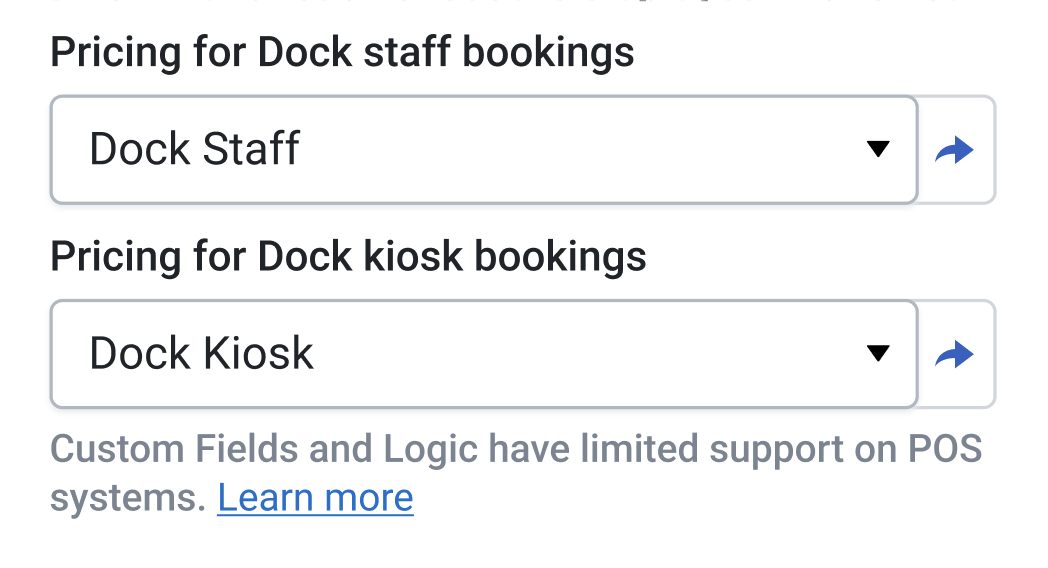
- Once the price sheets have been selected, click the Save changes button to finalize your updates.
Step 2: Item and customer type configuration
- Navigate to Settings > Price Sheets > Overview, and select the price sheet(s) you applied in Step 2 of Assigning price sheets.
-
Set the visibility of the items and customer types you want available on FareHarbor Dock.
Note: Memberships must be marked as Hidden, as they are not supported in FareHarbor Dock.
An item’s status will depend upon the item’s bookability in FareHarbor Dock.
- Unlisted items will be bookable.
- Private items will be bookable.
- Archived items will not be bookable.
(Optional) Set up item allocation
FareHarbor Dock’s Item allocation feature allows you to dynamically display location-relevant items while in Kiosk and Staff mode.
Personalizing item options for customers based on location can significantly benefit both your operational efficiency and conversion. Higher item relevance combined with fewer options to choose from results in less time spent making a decision by the customer, as well as a higher chance of booking an item.
This feature may be suitable for you if:
- Your company has multiple devices using the Dock app.
- Your Dock devices are located in multiple locations.
- You offer items that are location-specific.
To start allocating items to specific Dock devices:
- Navigate to your Dashboard > Settings.
- On the left-hand side, scroll down to the Build section and select FareHarbor Dock.
- Under Item allocation, select Add item collection.
-
Enter a name for your item collection.
Note: The item collection name should correspond to the relevant device or the location of the device. For example, “Hotel lobby” for your front-desk upselling items.
- Select the items you want to assign to the collection from the Items dropdown list.
- Select Create to save the changes.
Once you have created one or more item collections, you can offer and book the assigned items from each corresponding Dock device.
To specify which item collection to display on a Dock device:
- Open Settings from your Dock app home page.
- Select Item allocation under the Display section.
- Choose the relevant item collection from the list. Changes are saved automatically.
Step 3: Custom field configuration
Set the visibility of each available item’s custom fields. You can set visibility by deselecting the Hide custom field checkbox in the price sheet overview. View additional information regarding which fields are supported.
- Navigate to Settings > Price Sheets (listed under the Build section of the sidebar).
- Click into the Overview tab.
-
Click into the Display options dropdown (represented by a gear icon), and uncheck the Hide custom fields option.
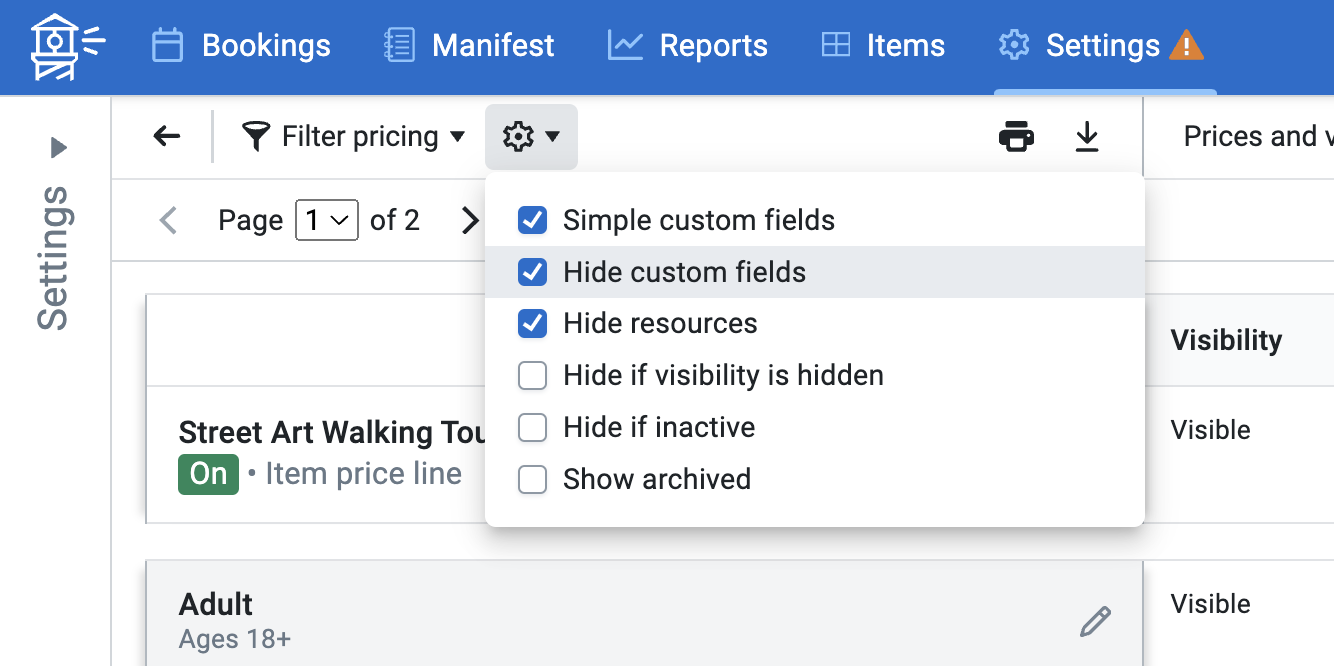
Unchecking the Hide custom fields option will allow you to see and manage all items and custom fields within the price sheet at once, rather than managing each individually via the Items section.
We recommend including essential custom fields only, as the purpose of FareHarbor Dock is to reduce the number of steps required to make an in-person booking. Including a large number of fields can result in a slower checkout process.
Step 4: Setting up hardware
Configuring your card reader
Please see the Setting up the FareHarbor Dock application help page for step-by-step instructions.
Configuring your printer
FareHarbor Dock supports ticket printing with AirPrint, Star Micronics, and Boca printers. Learn more about other supported hardware like card readers and tablets.
Setup for Star Micronic printers:
- Configure your Bluetooth printer.
- Connect the printer to your tablet.
Setup for Boca printers: Please refer to the related help page for detailed information on Boca printers and how to set them up in FareHarbor.
AirPrint: With this option, Dock will use your iOS tablet’s default printing settings without any additional setup required. AirPrint is available only in Dock Staff mode.
Once your printer is successfully connected to your tablet, proceed with connecting your printer to the FareHarbor Dock app.
Best practices
- Include essential custom fields only, as including a large number of fields can result in a slower checkout process. View additional information regarding which fields are supported.
- Hide Memberships. They are not supported in FareHarbor Dock.
Frequently asked questions
Which custom fields are supported?
Conditional custom fields in FareHarbor Dock are supported since version 1.9.1 on iOS and version 1.8.2 on Android.
Supported custom fields
- Checkbox
- Quantity dropdown
- Dropdown
- Text input: single line
- Text input: multiple lines
- Campaign code
- Code generator
- Gift card
- Label
Unsupported custom fields
- Transportation
Are price schedules supported for FareHarbor Dock?
Price schedules are supported for FareHarbor Dock.
Can I view bookings made with FareHarbor Dock in sales reports?
You can view reports on POS sales by running a booking and/or a sales report.
We are introducing additional booking Source and Group by parameters called POS and Kiosk. You can use these parameters to generate reports that show how many bookings have been made from FareHarbor Dock.
A booking source of POS refers to bookings made in staff mode, whereas Kiosk refers to bookings made using kiosk mode in the app.
The following report types support the POS Source and Group by options:
- Sales
- Bookings
- Customers
- Custom Field Answers
- Resource Uses
- Expenses and Discounts